Creative teams rarely work from a single account. A studio or agency has directors, editors, designers, and producers prompting at the same time—and they need one shared credit pool, private access to the same characters and styles, governed access to Enterprise video models, and a single invoice at the end of the month.
Organizations on LetzAI give your company or team a shared workspace while keeping every member's personal account separate. You can belong to up to ten organizations at once and move between your personal work and your company's workspace in a single click.
The key to working in an Organization is the Organization Switcher dropdown right inside the prompt composer. What you select there decides who pays for the job, which models appear in your picker, whether your company's API keys are used, and which rights clearances apply.
1. How and Why to Select Your Organization When Prompting
Joining an organization does not automatically bill your personal experiments to your company, and it does not lock you out of your personal credits. Instead, LetzAI gives you an explicit Organization Switcher dropdown right where you prompt.
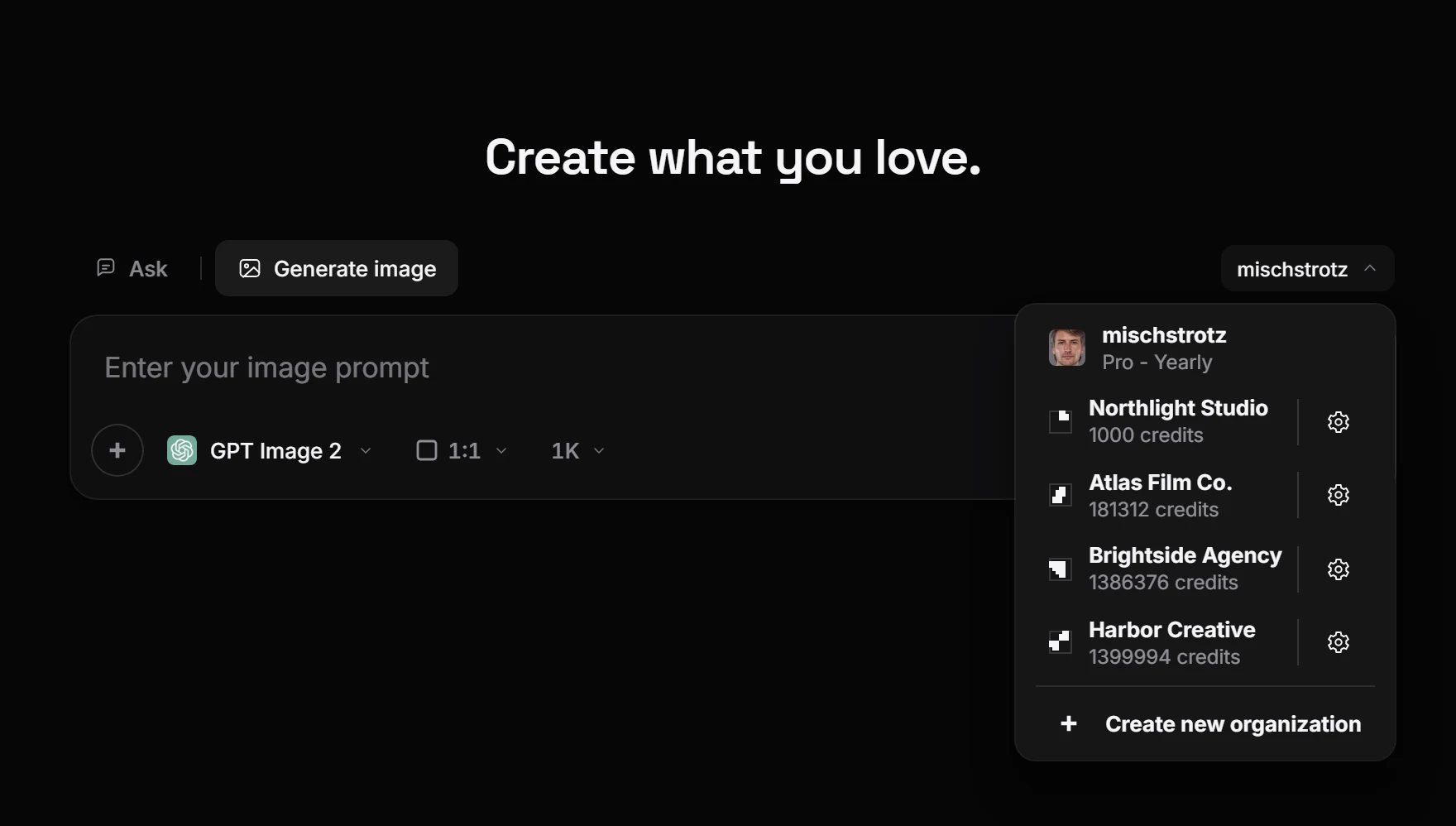
Where to find the Organization dropdown
- In Create (the main prompt composer) — Look at the top-right corner of the prompt box, directly across from the mode tabs (Ask, Generate image, Edit image, Animate, Edit video, Sound, Upscale).
- In AI Chat and on Canvas — The same switcher sits directly above the chat input bar beside your remaining credit counter.
- Inside the Out-of-Credits notice — If your personal account or an organization runs out of credits mid-session, the switcher is embedded directly inside the banner so you can switch workspaces without losing your prompt.
When you click the dropdown, you see your own account at the top with your plan, followed by every organization you belong to and the credits available in each one. An organization without credits is greyed out and cannot be selected until it has an active subscription or balance. The gear next to each organization opens its settings, and Create new organization at the bottom starts a new one.
Your selection is remembered everywhere: Once you choose an organization in the dropdown, LetzAI remembers that workspace across Create, AI Chat, Canvas, and new browser tabs until you switch back to your own account.
Why selecting your Organization matters before you press generate
Switching the dropdown from your own account to your organization does five things at once:
- It bills the organization's shared credit pool instead of your personal credits. Every image, video, audio track, upscale, model training job, and AI agent turn you run while the organization is selected draws from the team pool (within any per-member cap your admin has set).
- It unlocks Enterprise-only video models. Seedance 2.5 Enterprise, Seedance 2.0 Enterprise, and Seedance 2.5 Enterprise Draft Mode are only available when an organization with an active Enterprise plan is selected in the dropdown. Every Enterprise generation carries your organization's safety identifier and connects to your organization's private portrait and asset library. If you try to run an Enterprise model while on your own account, the composer will prompt you to switch into your organization first.
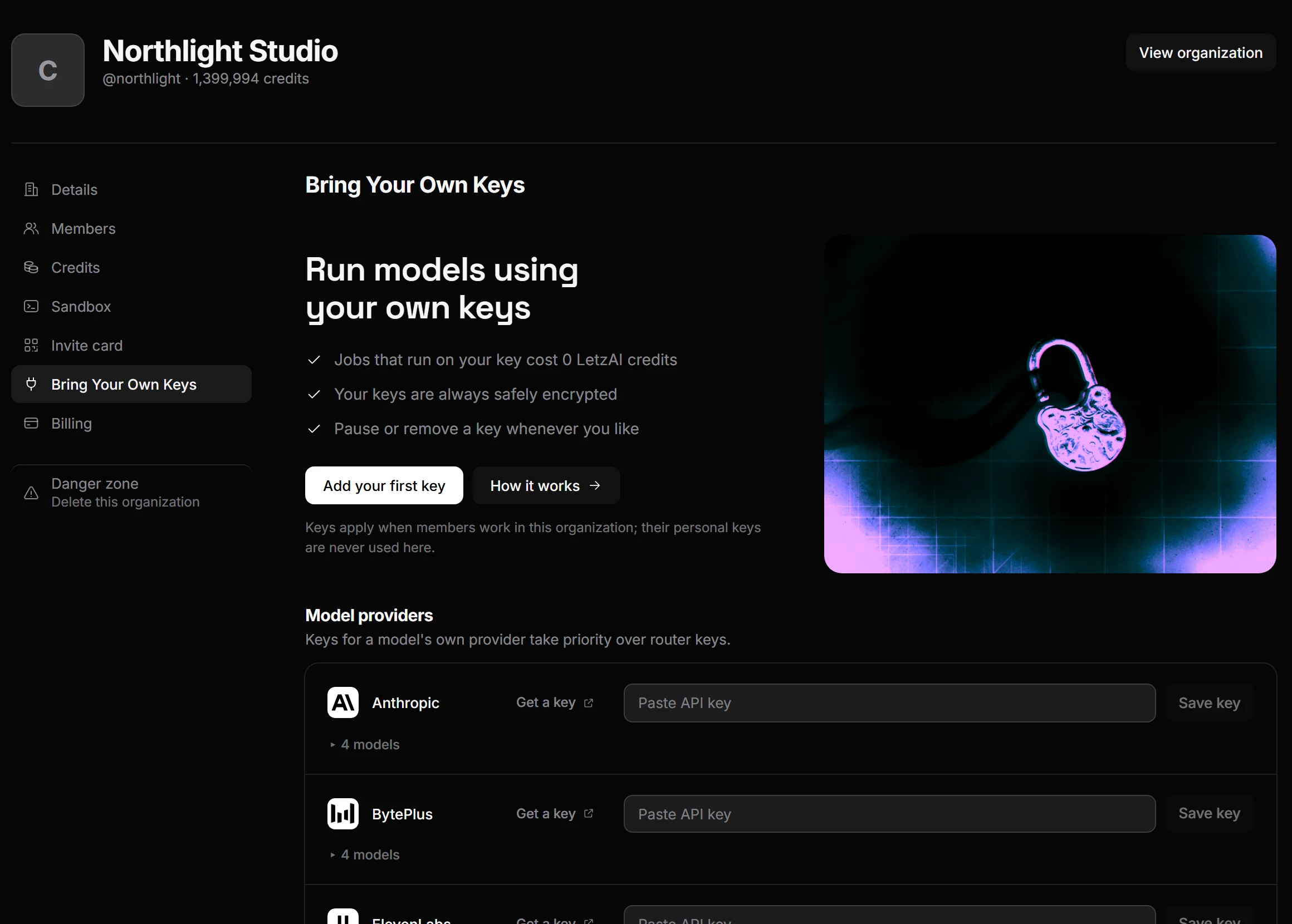
- It routes covered models through your company's Bring Your Own Keys (BYOK) at 0 credits. If your organization admin has saved API keys for OpenAI, Anthropic, Google Gemini, xAI, FAL.ai, BytePlus, ElevenLabs, or Inference Shell, selecting the organization in the dropdown automatically runs every covered model on the company's provider account for 0 LetzAI credits. Your personal keys are never touched, and team members never need to see or paste an API key.
- It activates your organization's IP and likeness clearances. Approved Copyright Clearance submissions for protected brands, characters, or public figures are bound to the organization that holds them. Selecting the organization ensures those clearances are active when prompting Seedance Enterprise.
- It enables AI Agent Cloud Sandboxes in Chat and Canvas. Enterprise organizations can give their Chat and Canvas agents an isolated Linux sandbox with a shell, Python, Node.js, ffmpeg, and a real browser. The agent receives its sandbox whenever you prompt inside an organization where your seat has sandbox access enabled.
2. Everything You Can Do Inside an Organization
An Organization is more than a shared wallet. It brings team permissions, credit governance, private assets, Enterprise video capabilities, and developer integrations under a single settings panel.
Shared Credit Pool: Pooled vs. Split Distribution & Member Caps
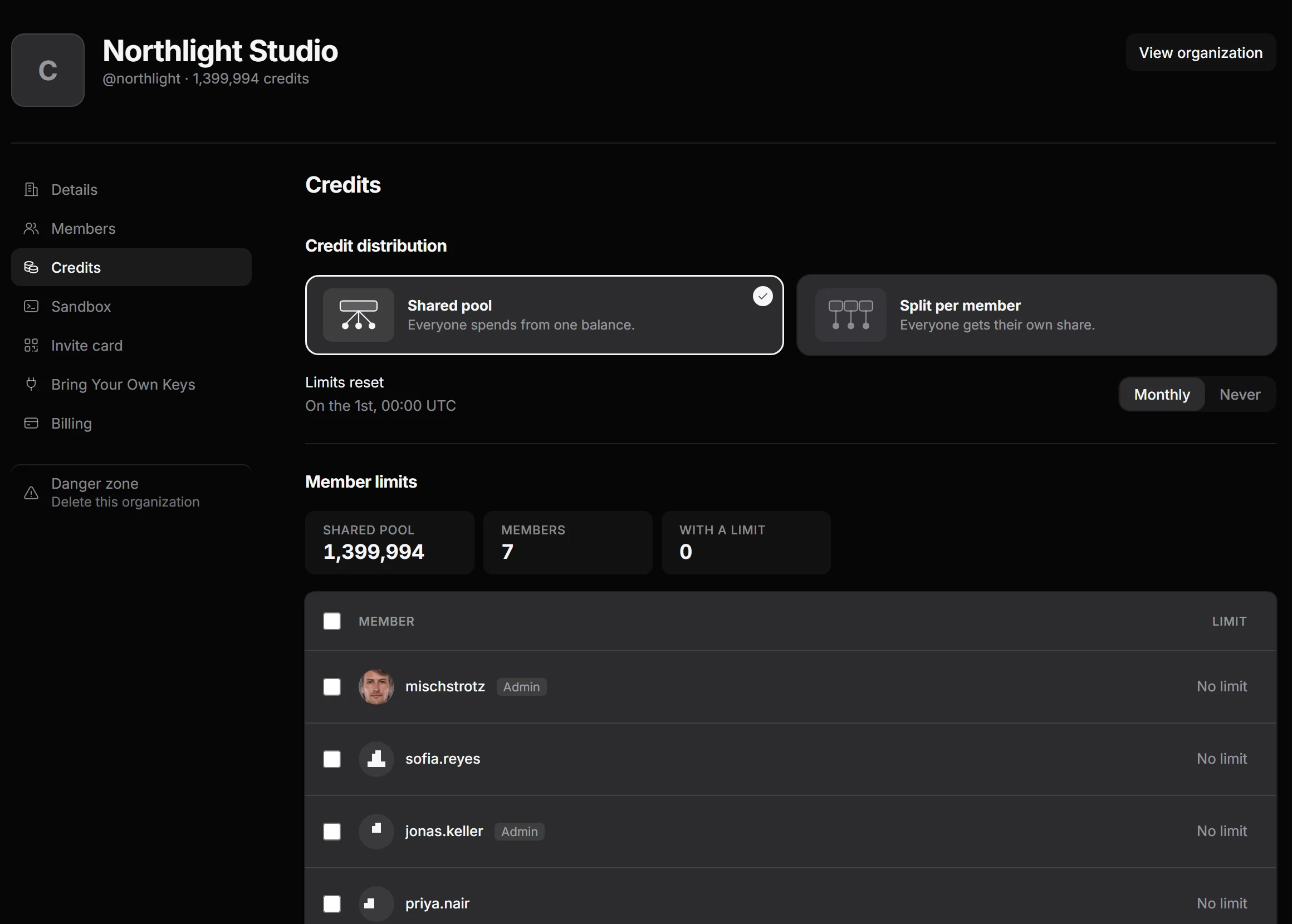
In your organization's Credits tab, administrators control how the team shares its credit balance:
- Pooled credits — Every member draws from one central credit pool as they work. This is ideal when different departments or projects have fluctuating volume from week to week.
- Split credits — Divide the organization's credits across seats so every member has a dedicated allocation.
- Per-member credit limits — Even in a shared pool, admins can set a custom spending cap for individual members—either as a monthly limit that resets with the billing cycle or a total limit—so one heavy batch never exhausts the entire studio's balance unexpectedly.
- Non-expiring credit top-ups — While monthly plan credits refill each billing period, active Enterprise organizations can purchase one-time credit top-ups (500,000, 2,500,000, or 4,250,000 credits) that never expire and cut the per-credit cost by up to 53%.
Seedance 2.0 & 2.5 Enterprise and Draft Mode
Switching into an active Enterprise organization unlocks ByteDance's professional Seedance Studio workflow on LetzAI:
- Seedance 2.5 Enterprise — Generate clips up to 30 seconds long at 480p, 720p, or 1080p with native synchronized audio and up to 50 multimodal references (up to 30 images, 10 videos, and 10 audio files) plus a private organization-scoped portrait library that keeps characters consistent across shots.
- Seedance 2.0 Enterprise — Generate clips up to 15 seconds long in resolutions all the way up to 4K, with up to 12 multimodal references (9 images, 3 videos, 3 audio files) and native synchronized sound.
- Seedance 2.5 Enterprise Draft Mode — Explore takes fast at 480p with synchronized sound inside your organization's private workspace, then upscale only the winning take to 1080p within 7 days while preserving the exact prompt, framing, references, timing, and audio.
- Professional creative latitude — Enterprise variants support face references, approved real-person likenesses and licensed IP, and mature dramatic themes that consumer safety tiers refuse (while continuing to prohibit illegal content, CSAM, non-consensual deepfakes, and unlicensed IP).
Copyright Clearance & IP Whitelisting
Studios, talent agencies, and brand owners often need to generate content featuring their own copyrighted characters, trademarks, or represented public figures. From your organization page, open Copyright Clearance to submit documentation in two categories:
- IP Copyright — For characters, products, and brand properties your organization owns or is licensed to produce with.
- Artiste Likeness Rights — For actors, presenters, or public figures your organization represents or holds signed authorization to depict.
The workflow provides the official BytePlus authorization templates to sign and attach alongside your proof of ownership; LetzAI prepares the Platform Letter of Undertaking on your behalf and submits the package for manual review.
Bring Your Own Keys (BYOK) for Your Whole Team
If your company already has direct API agreements or cloud credits with model providers, an administrator can open the organization's Bring Your Own Keys tab and save keys for:
- OpenAI, Anthropic, Google Gemini, and xAI
- FAL.ai, BytePlus, ElevenLabs, and Inference Shell
Once a key is saved on the organization, every text, image, video, audio, and upscale model served by that provider costs 0 LetzAI credits whenever a team member prompts with the organization selected in the dropdown. LetzAI places a temporary 1-credit hold when a job starts and refunds it the moment the job completes on your key. Keys are masked at all times, personal member keys are never mixed into organization runs, and admins can pause, replace, or revoke a key in one click. Read the full setup walkthrough in our Bring Your Own Keys guide.
AI Agent Cloud Sandboxes
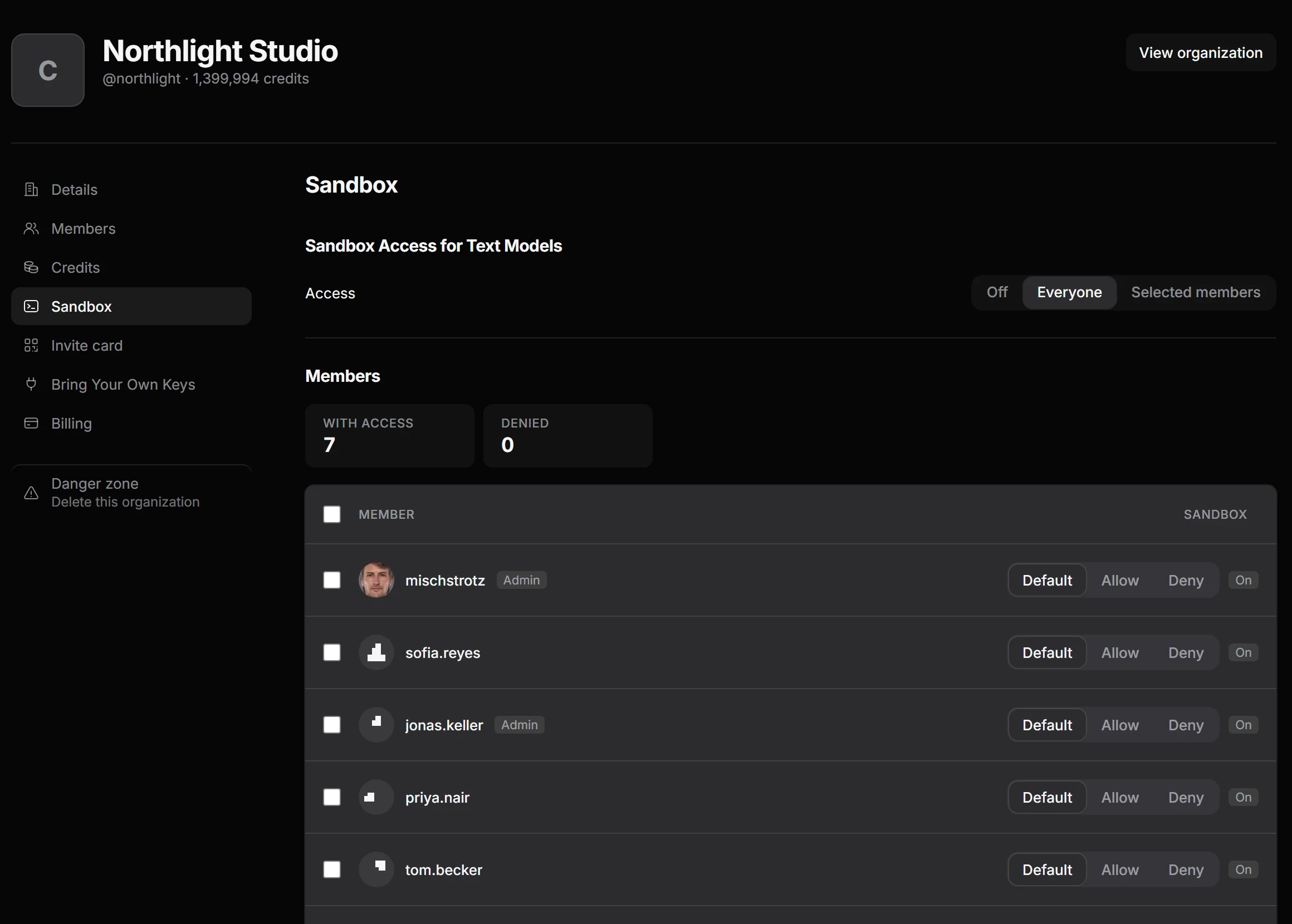
In LetzAI V5, Enterprise organizations can equip their Chat and Canvas agents with a dedicated gVisor cloud sandbox—an isolated environment with a shell, Python, Node.js, ffmpeg, a real browser, and open internet access so the agent can write code, process files, composite media, and inspect live web pages.
In the organization's Sandbox tab, administrators choose who gets sandbox access:
- Off — Disabled across the organization.
- Everyone — Every member prompting inside the organization gets the agent sandbox automatically.
- Selected members — Grant sandbox access only to specific seats on your team.
Private Shared @Models, Canvases, Boards & the Model Training API
Everything your team builds can stay private to the organization while remaining effortless for teammates to use:
- Shared Private @Models — Train custom Character, Object, or Style models and share them with your organization while keeping their visibility set to Private. Every member of the organization can summon
@your_modelin Create, Chat, or Canvas without exposing proprietary brand assets to the public community feed. - Shared Canvases & Boards — Share infinite Canvas production boards and curated asset Boards directly with your organization so the whole team can story-board, review shots, and cut timelines in LetzMotion together.
- Model Training API — Automate model creation, updates, and thumbnail management from your own internal pipelines using organization API keys (`POST /models`).
Roles, Invite Cards & Centralized Billing
Managing seats and procurement stays simple as your team grows:
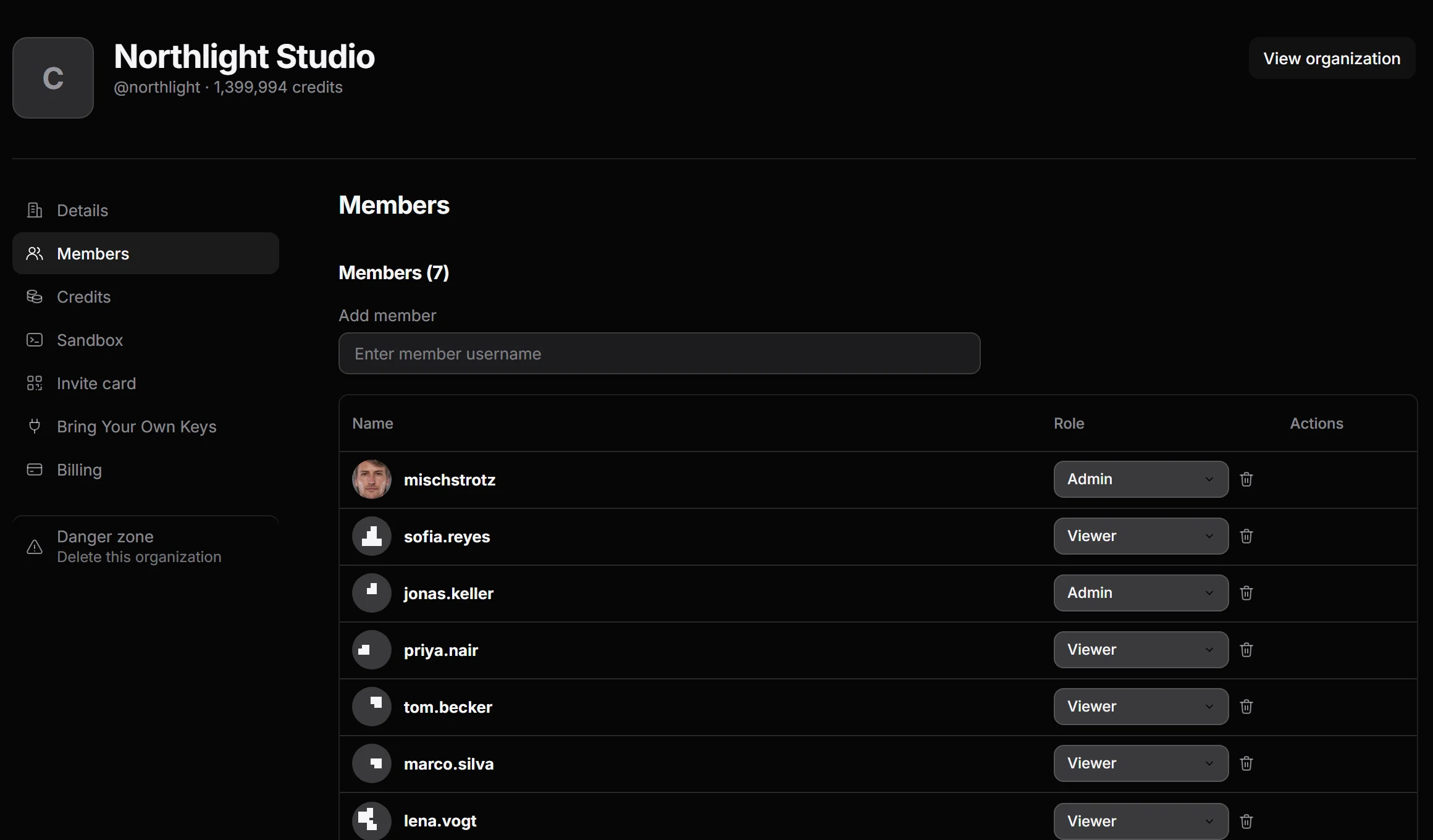
- Three clear roles — The Owner and designated Admins manage seats, credit limits, BYOK keys, sandbox access, and billing; Viewers focus on creating and can use the shared models and canvases.
- Three ways to onboard — Invite teammates directly by their LetzAI username, copy a shareable organization invite link, or download a QR code invite card from the Invite card tab so colleagues can request access from their phone and admins can approve them in one click.
- Plans & Invoices — Choose Enterprise Basic (10 seats, 200,000 monthly credits), Enterprise Plus (30 seats, 750,000 monthly credits, dedicated account manager), or a tailored Enterprise Custom deployment with invoice billing and optional SSO. All Stripe invoices and receipts live under the organization's Billing tab.
3. Quick Checklist: Prompting as Part of a Team
Whenever you sit down to create for your team or client, follow this three-step habit:
- Check the Composer Dropdown first — Confirm the button in the top-right corner of the prompt box shows your Organization name rather than your own account.
- Pick your model and @models — With your organization active, select Seedance 2.5 Enterprise, Seedance 2.0 Enterprise, or any model backed by your team's BYOK keys, and tag your team's private
@models. - Switch back anytime for personal projects — When you want to test an idea on your own balance, click the same dropdown and choose your own account.
— The LetzAI Team