
Overview
LetzAI gives you three ways to teach the assistant how to work — each with a different scope and strength:
| Layer | Scope | Where | Best for |
|---|---|---|---|
| Skills | Your whole account | Chat and Canvas | Reusable workflows and standing rules (tone, client checklists, house style) |
| Page instructions | One Canvas page | Canvas only | Authoritative briefs for a specific board page ("only build from the Locked Bible") |
| Page memory | One Canvas page | Canvas only | Facts the assistant should remember about this page ("Lucy uses node X as reference") |
Skills follow you everywhere. Page instructions and memory stay on the page where you set them. This is useful when one board has several distinct jobs (research, storyboard, delivery) with different rules and context.
Changes to any of these apply from your next message. You do not need to start a new chat.
When to use what
Use this as a quick decision guide:
| You want to… | Use |
|---|---|
| Set a rule that should hold on every Chat and Canvas conversation | Skill with Always apply |
| Define a multi-step procedure the agent runs when a task matches ("clone this site", "build a deck from frames") | Skill (agent loads it when relevant) |
| Lock how the assistant behaves on one Canvas page only | Page instructions |
| Save an observed fact about characters, brand, nodes, or decisions on this page | Page memory |
| Ask the assistant to remember something mid-conversation on Canvas | Say so in chat — it can write to page memory, or you add it in Page settings |
Skills
Skills are reusable markdown playbooks for LetzAI Chat and Canvas. You write them once; the assistant loads them when your task matches, or every turn if you turn on Always apply.
Two kinds of Skills
| Type | How it works | Example |
|---|---|---|
| Workflow | The assistant sees a short description each turn and loads the full guide when your request fits. | "Research before building a deck about a real brand", "Convert frames into a slide deck" |
| Standing preference | Turn on Always apply and the full body is included every turn. | "Reply in French", "Use our house voice", "Always cite sources" |
Built-in Skills vs yours
LetzAI ships built-in workflow Skills for common jobs, with names like "research before build", "cloning websites", "storyboards", "moodboard fan-out", "slide decks from frames", and more. You cannot edit these; the assistant discovers them automatically and loads them when needed.
Your Skills live in Settings → Skills. You can add up to 25 per account, enable them for Chat, Canvas, or both, and import from GitHub or paste a SKILL.md file.
For step-by-step creation, samples, and the SKILL.md format, see the launch article: Add Skills to LetzAI Chat and Canvas.
Where to manage Skills
- Settings → Skills — create, edit, import, delete, and toggle Always apply.
-
Puzzle icon in the Chat or Canvas composer — see active Skills and turn them on or off without leaving the conversation.
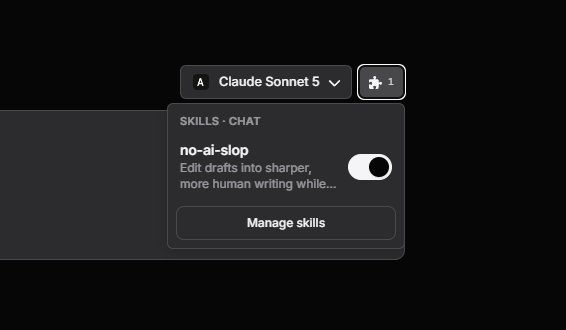
- Page settings → Skills on Canvas — same list and toggles, reachable from the page tab menu when you are working on a specific page.
Enabling a Skill applies it across your account for the surfaces you chose (Chat and/or Canvas), not only on the page where you toggled it.
When the assistant proposes a Skill
If you ask the assistant to save a new rule or workflow as a Skill, it drafts name, description, and body and shows an approval card in the chat. Nothing is saved until you click Approve. You can edit Skills yourself anytime in Settings.
Page instructions (Canvas)
Each Canvas board can have multiple pages (tabs). Every page has its own instructions in the form of a free-text brief the assistant relies on for work on that page.
Use page instructions when the rules are specific to one page on the board:
- "Only generate from the Locked Bible section — do not invent new characters."
- "This page is delivery only. Do not start new generations."
- "Match the typography and spacing in the reference frame on the left."
Editing instructions
- Open your Canvas board.
- In the left panel, find the page you want in the Pages list.
- Click the cogwheel icon next to the page name to open Page settings.
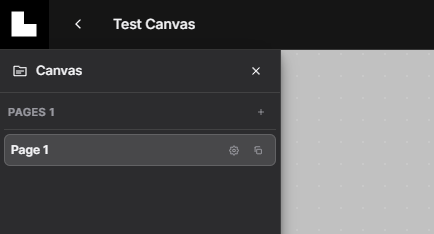
- On the General tab, edit Page name and Instructions, then click Save.
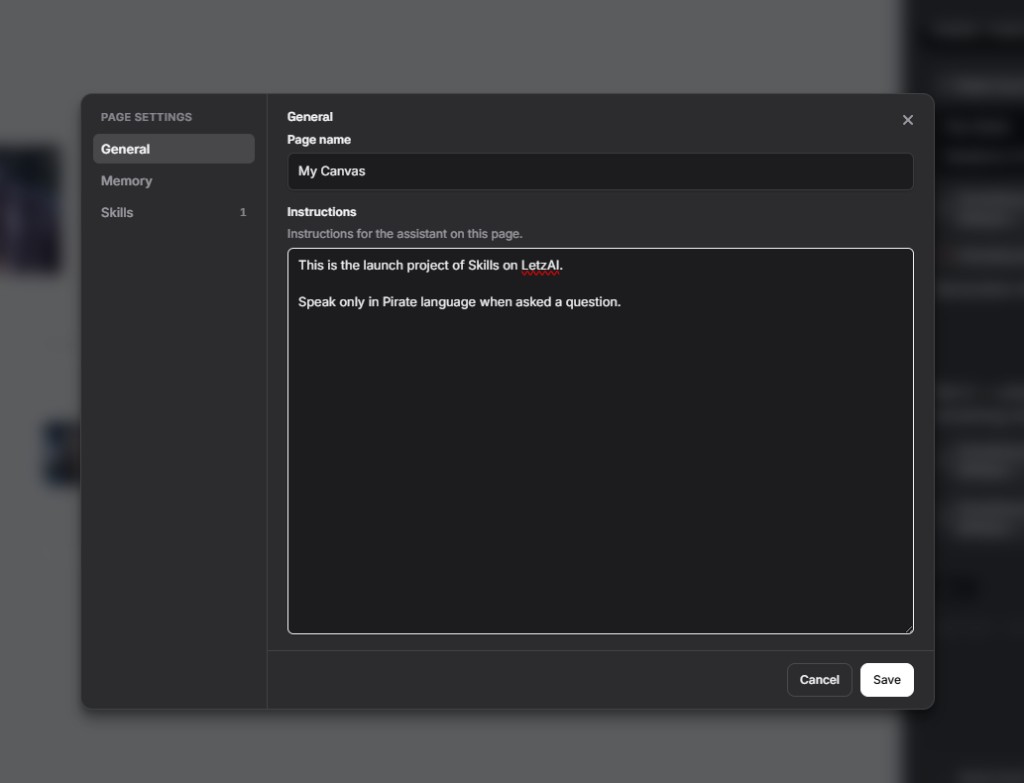
Instructions apply from the next message. You can change them mid-conversation without clearing chat history.
Page memory (Canvas)
Page memory stores facts about the current page. These are things the assistant (or you) learned during the work. Memory is injected as hints, not hard rules. If memory conflicts with what you just said, the assistant should trust you and you can delete or edit the entry.
Good things to store in memory
- "
img_abc123is character Lucy" (link the node — do not describe her looks) - "Client approved the dark mockup direction"
- "Brand color is
#0A0A0A"
Keep each entry to a short pointer (up to 140 characters). Prefer a board node id + a label. Do not store character or scene descriptions — those bias later generations; the image on the board is the source of truth. The assistant can add memory when you ask ("remember that…") or when it notices something worth keeping.
Viewing and editing memory
Open Page settings → Memory on the same page. You will see every saved fact with its date. You can edit text, remove entries, or click Add a fact to write your own.
If you type something that reads like a rule, the UI will nudge you to put it in Instructions instead — memory is not the right place for "always" or "never" directives.
Limits
| Limit | Value |
|---|---|
| Entries per page | 40 (oldest drop off when full) |
| Characters per entry | 140 (short pointers) |
| Total memory block | 8,000 characters |
Memory exists only on Canvas. Chat does not have page memory.
Using all three on one board
A typical film or campaign board might look like this:
- Skills — account-wide: your house voice Skill (Always apply), a storyboard workflow Skill, visual-reference rules.
- Page "Research" — instructions: "Summarize only from pasted links; no generation." Memory: facts the assistant found (URLs, names, palette).
- Page "Storyboard" — instructions: "Generate 16:9 frames only; match the Locked Bible." Memory: which character maps to which reference node.
- Page "Delivery" — instructions: "Export-ready layouts only; no new concepts." Memory: client sign-off notes.
Skills handle repeatable behavior everywhere. Instructions lock each page's job. Memory accumulates what was learned so you do not repeat yourself every session.
Tips
- One job per Skill. Smaller Skills trigger more reliably than one giant document.
- Write descriptions as triggers. The one-line description tells the agent when to load a workflow Skill — be specific ("when the user asks to clone a website").
- Prefer Instructions for page rules. If it must hold on this page, put it in Page instructions, not memory.
- Review memory occasionally. Delete stale facts so hints stay accurate.
- Use the puzzle icon for quick experiments. Toggle Skills on and off mid-conversation to see what changes before committing in Settings.
Related
New to Skills? Start with the tutorial and samples in Add Skills to LetzAI Chat and Canvas. For Canvas workflows, see Using Canvas and AI Chat.